


A year ago, a family member gave me a 2019 laptop that wouldn’t run Windows anymore. And of course, I immediately installed Fedora Linux on it. While my day-to-day Fedora Linux system is a desktop PC, it’s nice to have a laptop to take with me when I do workshops or conference demos.
However, the laptop has a physical “spinning heads” hard disk, so it is really slow to boot. I timed it; the laptop takes almost two minutes to go from “power on” to “login prompt.” And that’s a very long time when you’re at the front of the room, waiting to start a demo.
I thought about replacing the hard disk with a solid state drive, but when I opened the laptop to make sure the drive was replaceable, I saw that the laptop also supports an NVMe solid state drive in addition to the hard disk.

This presented an interesting opportunity: I could put in an NVMe drive and install Fedora Linux across two disks. Specifically, I wanted to boot Fedora Linux from the NVME drive, and keep extra apps and other data on the hard disk. I use several big third-party apps for my demos, which I install in both /opt and /usr/local, and it’s a huge pain to download and install those extra applications whenever I upgrade Fedora Linux. (I prefer to wipe and reinstall when I upgrade Fedora Linux, so I always have a clean starting point.) If I could keep /opt and /usr/local on the hard disk, I could preserve those when I install the next version of Fedora Linux.
Installing Fedora Linux to the NVMe
After installing a new NVMe drive in the laptop, I needed to reinstall Fedora Linux. I prefer the Xfce desktop, so I downloaded the Fedora Xfce spin and booted the installer. When the installer reached the “Destination” step, it prompted me for the target disk. I clicked “Choose destination” and selected the NVMe disk:
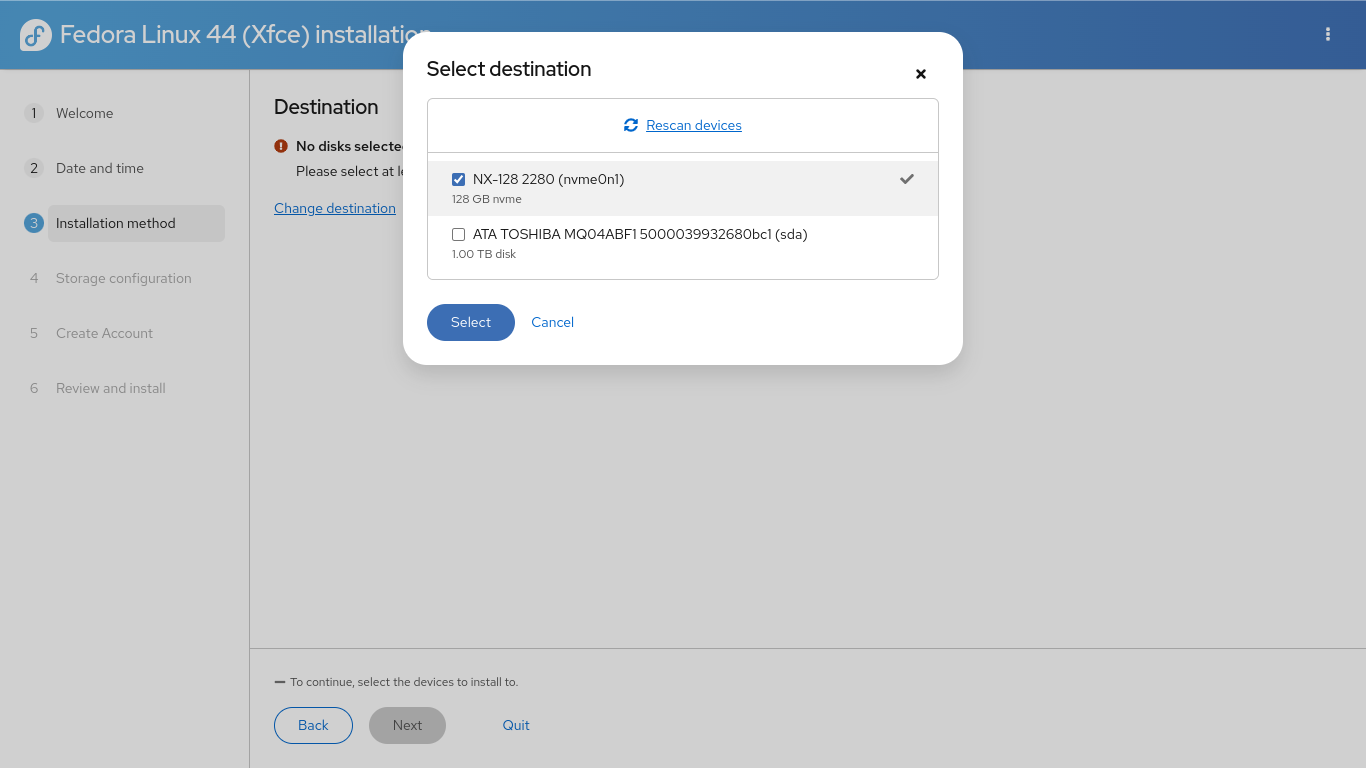
The rest of the installation ran normally. The Fedora Linux installer set up the partitions automatically on the new NVMe drive, encrypted my data, and installed the operating system.
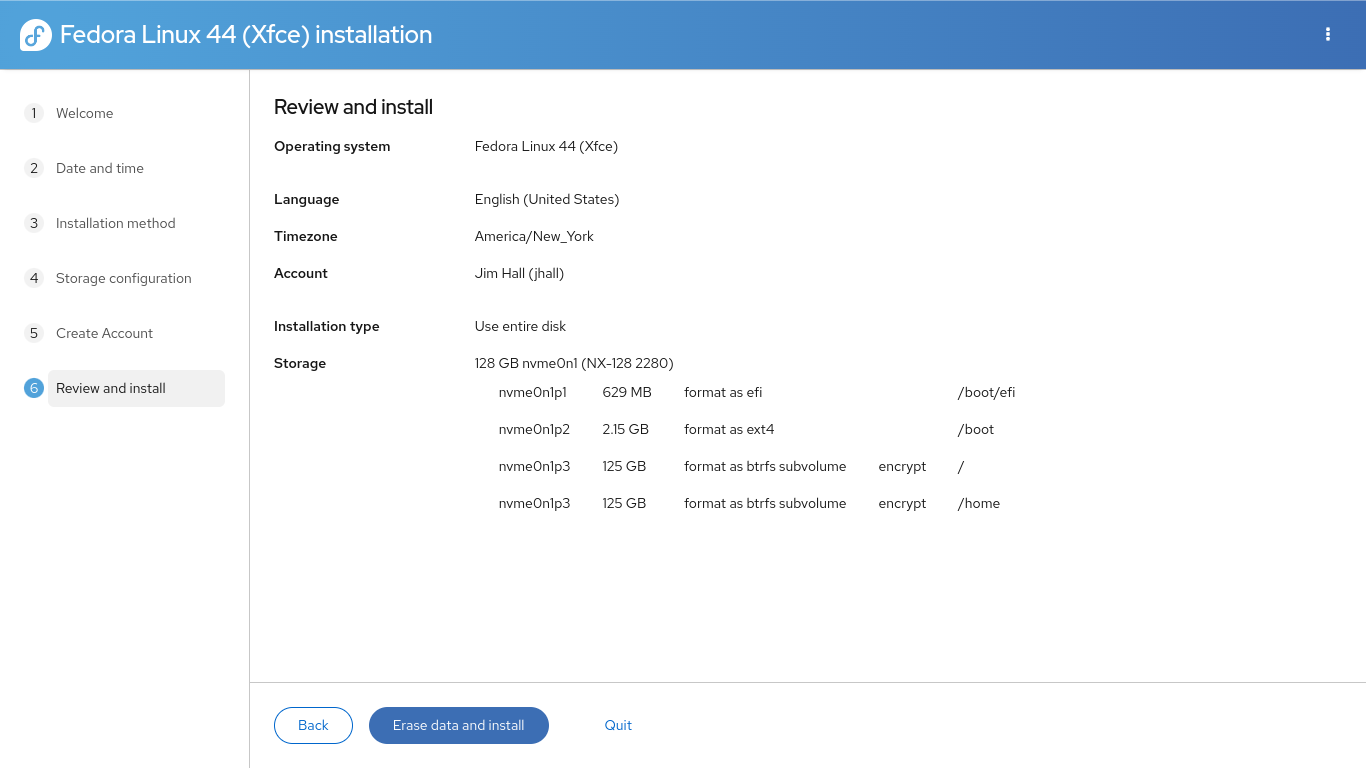
With Fedora Linux on the NVMe drive, booting took seconds instead of minutes. Again, I timed it: about 20 seconds to go from “power on” to “login prompt.” That’s a huge improvement!
Setting up partitions on the hard disk
The disk partition app in the Fedora Xfce is GParted, which makes it easy to set up the hard disk with new partitions. However, GParted’s main limitation is that it can’t set up encrypted volumes for you. If you want to use encryption, you’ll need to use the command line and run cryptsetup on your own.
However, I’m not very concerned about encrypting my /opt and /usr/local partitions. These are just third-party apps, not private data. My personal data will be saved to my home directory, which is safely encrypted on the NVMe drive. So I decided to set up regular partitions, formatted as ext4 filesystems.
I used GParted to delete the old partitions on the hard disk, and define three partitions that were each about 300 GB: /opt (which I labeled as opt), /usr/local (labeled usrlocal) and /backup (labeled backup). GParted created the partitions and wrote an ext4 filesystem on each.
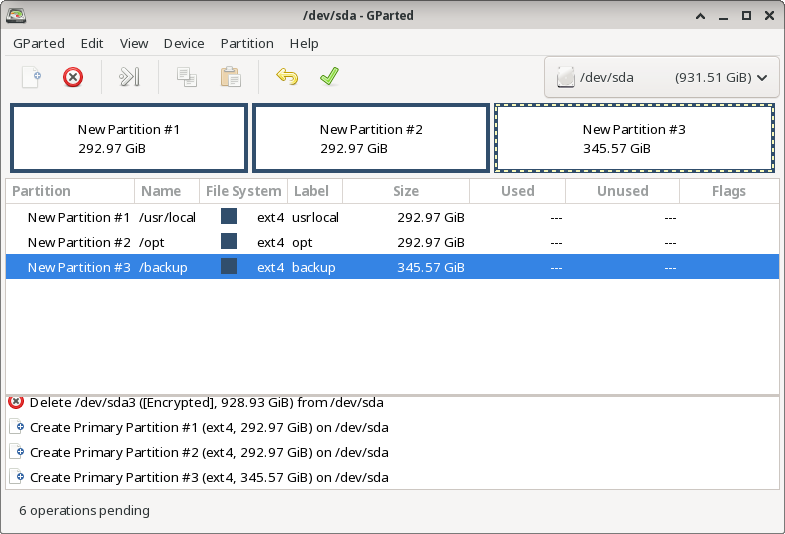
However, the /usr/local filesystem has a directory tree in it already, such as /usr/local/bin and /usr/local/lib, although these directories will be empty after installing Fedora Linux. I wanted to copy the original directories to the new filesystem. The easiest way to do that is to add the new usrlocal partition somewhere else and then copy the old /usr/local to the new partition. Adding a partition to a directory is called mounting, and the directory itself is called a mount point.
First, I needed to create a new mount point for the usrlocal partition, which can be located anywhere on the filesystem. Since this was temporary, I created it under /tmp then mounted the new partition using the mount command:
$ sudo mkdir /tmp/usrlocal
$ sudo mount LABEL=usrlocal /tmp/usrlocal
Then I copied the contents of the old /usr/local to the new /tmp/usrlocal mount point. The -a or –archive option copies everything:
$ cd /usr/local
$ sudo cp --archive * /tmp/usrlocal
After the process is complete, I unmounted the new partition:
$ sudo umount /tmp/usrlocal
Adding the partitions to the system
To make sure the new partitions are automatically mounted every time my laptop reboots, I needed to add them to my /etc/fstab file. This is a special file that contains the filesystem table, which is a list of partitions that the system can find on the disk and where to mount them. For example, my default /etc/fstab file looks like this:
#
# /etc/fstab
# Created by anaconda on Sat May 23 20:15:13 2026
#
# Accessible filesystems, by reference, are maintained under '/dev/disk/'.
# See man pages fstab(5), findfs(8), mount(8) and/or blkid(8) for more info.
#
# After editing this file, run 'systemctl daemon-reload' to update systemd
# units generated from this file.
#
UUID=c10ec138-be4b-4513-89b7-749ef4a0605e / btrfs subvol=root,compress=zstd:1,x-systemd.device-timeout=0 0 0
UUID=a87b1ed4-4951-4da1-a4a4-a5c48f1f3b28 /boot ext4 defaults 1 2
UUID=9AD9-2C52 /boot/efi vfat umask=0077,shortname=winnt 0 2
UUID=c10ec138-be4b-4513-89b7-749ef4a0605e /home btrfs subvol=home,compress=zstd:1,x-systemd.device-timeout=0 0 0
Each line in the /etc/fstab file is divided into several fields: the identifier for the filesystem (to learn more about these, see Persistent Identifiers for Storage Devices in the Fedora online documentation), the mount point, the filesystem type, a list of mount options, and two optional fields that control if backup software should “dump” the filesystem to backup media (use 0 for never) and what order the fsck command should check filesystems when needed (usually 1 for the root filesystem, or 2 for other filesystems). I added these lines to my /etc/fstab file, which defined the mount points for each of my new filesystems:
LABEL=backup /backup ext4 defaults,noatime 0 2
LABEL=opt /opt ext4 defaults,noatime 0 2
LABEL=usrlocal /usr/local ext4 defaults,noatime 0 2
This is an internal drive, so it should be there every time the laptop boots up. If you add removable storage to the /etc/fstab file, such as a USB drive, you should add the nofail option to this list of mount options. Otherwise, if the partition is not available when Linux starts up, the system will hang.
With these lines in the /etc/fstab file, I ran these commands to reload the /etc/fstab file, create the /backup mount point, and mount each of the filesystems:
$ sudo systemctl daemon-reload
$ sudo mkdir /backup

$ sudo mount /backup
$ sudo mount /opt
$ sudo mount /usr/local
This generated an SELinux alert right away, complaining that the new /usr/local filesystem lacked the correct security context. The security information wasn’t “carried over” when copying the old /usr/local directory tree. Fortunately, the SELinux error provides the solution:
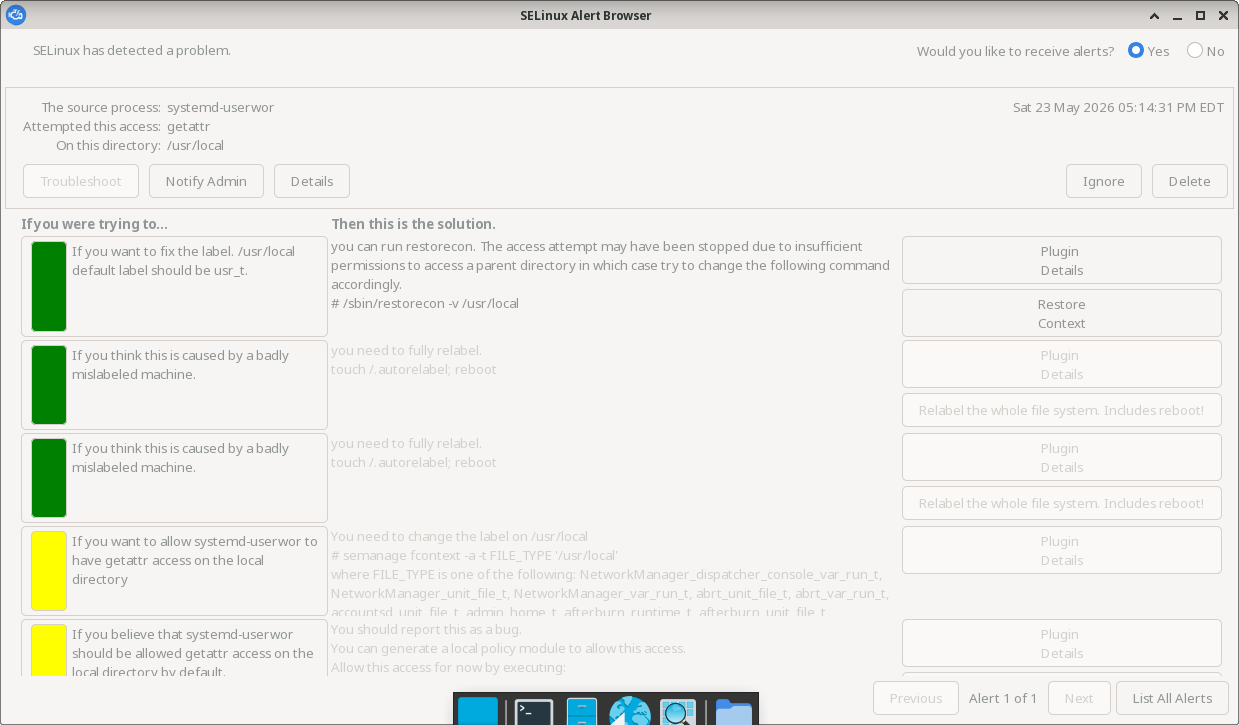
To restore the default SELinux security contexts to the new /usr/local directory tree, I ran the restorecon command. The -v option will print what it does to fix the system:
$ sudo restorecon -v /usr/local
Relabeled /usr/local from system_u:object_r:unlabeled_t:s0 to system_u:object_r:usr_t:s0
Relabeled /usr/local/lost+found from system_u:object_r:unlabeled_t:s0 to system_u:object_r:usr_t:s0
Filesystem flexibility
With just a few extra steps, I was able to use two disks with Fedora Linux, which lets me take full advantage of the storage on my laptop. The operating system now runs from the very fast NVMe drive, while my big third-party applications in /usr/local and /opt run from the hard disk.

One suggestion here. You copy across the
/usr/localdata using:Then later, you need to
restoreconto get the SELinux labels right on the new partition.Instead, you could use
rsyncwith the-X(extended attributes) option to include SELinux labels in the copy process:There should then be no need for the subsequent
restorecon.Before retiring I had a very similar use case. After installing linux I just added symbolic links under
/usr/local/<NAME>to match the directory structure others would have after installing our Linux apps.The Fedora 44 workstation is installed on the desktop nvme and ssd 256 GB
drves one.They working pretty well indeed
If you prefer a GUI solution over cryptsetup, the is
blivet-guiI wish I’d known that was there. (It’s not in the menus, so I didn’t see it.) That seems like an easier way to set up encrypted volumes instead. I’ll try it, since I haven’t done much with this laptop yet. Thanks!
Hi Jim,
I’m always a big fan of Infrastructure As Code (IAC)
To avoid a lot of clicking and possible mistakes I always deploy my fedora installations with kickstart.
cons:
Which is actually rather simple to do and requires only a ks.cfg file on an additional usb drive with the label ‘OEMDRV’
place the file ks.cfg in the root of the usb-drive with the label OEMDRV
use the fedora server installation media (because it wont work with the gnome workstation media)
ensure the OEMDRV usb stick is in the laptop.
ensure you boot from the fedora server installation media (usually another usb stick )
kickstart docs
This kickstart will wipe all your drives!!!
ks.cfg: