


For decades, the Linux virtual console has relied on the kernel fbcon driver, to draw the framebuffer, to manage fonts, and to handle keyboard layout. Starting with Fedora 45, we’re switching to a userspace utility called kmscon. Depending on your usage of virtual console, this may impact your workflow.
If you’re not a developer or a system administrator, chances you probably never heard about fbcon or virtual terminal (VT), in this case you’re probably not impacted.
You can still read the rest if you’re curious about minimal text interfaces, and maybe you’ll start using it.
How to use the virtual console
Most of the graphic sessions runs in tty1 or tty2. So press Ctrl+Alt+F3 to switch to tty3, and you will get a login prompt. This is the virtual console we’re talking about. To go back to your graphic session, press Ctrl+Alt+F1 (or F2 or F7 depending on your desktop environment).
Why is kmscon replacing fbcon ?
The legacy fbcon driver runs directly in the kernel space, and has significant drawbacks:
- Security: Each bug in fbcon can be exploited in the kernel directly, and each crash is a kernel panic.
- Keyboard layout: The keyboard layouts supported by the kernel are different from what userspace is using. So when you choose the keyboard layout in the anaconda installer, it tries to find the kernel layout that is as close as possible to the chosen layout.
- Fonts: fbcon only uses bitmap fonts, which look small on a High DPI display, and you can’t resize them at runtime. They have limited unicode support. Kmscon can use freetype, and render all monospace fonts.
- Scrolling: fbcon does not support scrolling anymore, due to a CVE.
- Mouse: fbcon does not have mouse support, it can be added with gpm, but is a bit clumsy. Kmscon uses a transparent hardware cursor when available, and has basic mouse support.
- Fbdev: fbcon relies on the old fbdev interface, but all GPU drivers are now using drm. Switching to kmscon allows dropping the fbdev emulation layer in the kernel.
What this will change for users and administrators ?
- Kmscon uses pseudo-tty (pts) devices. So when you run tty it returns /dev/pts/0 instead of /dev/tty1, like when you use a graphic terminal. So you will need to update all scripts or configuration that use this information.
- Kmscon uses the exclusive drm interface to the GPU to draw the terminal. If you want to run a graphic session or a program that wants to use the GPU, it won’t work like it used to with fbcon. The reason is that fbcon runs in the kernel and can let any userspace application take the GPU. Kmscon can’t do that, so you have to tell it to release the GPU. This is done with a script called kmscon-launch-gui. For example, to start a graphic session you can run
kmscon-launch-gui kmscube -c 100
or
kmscon-launch-gui startx - Kernel messages: By default the kernel error/warning messages are visible in tty1. It can be annoying when it mixes with what you are typing. You can read the messages with dmesg -w, or have a dedicated tty that runs
kmscon --vt=%I --no-switchvt --oneshot --login -- dmesg -w - Kernel fonts: The setfont command has no effect on kmscon. Kmscon uses the built-in unifont or freetype if it’s available. You can read below how to configure it. kmscon can also use psf fonts, if you want the exact same looking as fbcon.
- Keyboard layout: The loadkeys command has no effect on kmscon. Instead, kmscon listens to localectl dbus, and updates the keyboard layout accordingly. So, to change layout, run
localectl set-keymap us - Kmscon replaces the default console in F45, for tty1-6. If you want to keep a tty using fbcon, just in case, you can run
sudo systemctl mask kmsconvt@tty5 && sudo systemctl enable --now getty@tty5
Then pressing Ctrl+Alt+F5 switches to your good old fbcon console.
Default kmscon shortcuts
- Zoom in: Ctrl++, Ctrl+WheelUp
- Zoom out: Ctr+-, Ctl+WheelDown
- Rotate the terminal: Super++, Super+-
- Scroll up: Shift+UpArrow, Shift+PageUp, Mouse Wheel Up
- Scroll down: Shift+DownArrow, Shift+PageDown, Mouse Wheel Down
- Copy/paste: select with the mouse, or select a word with double click, and MiddleClick to paste
- Switch to ttyX: Ctrl+Alt+FX
- Restart kmscon on ttyX: sudo systemctl restart kmsconvt@ttyX
- To know on which VT you are using, echo $XDG_VTNR
How does it look ?
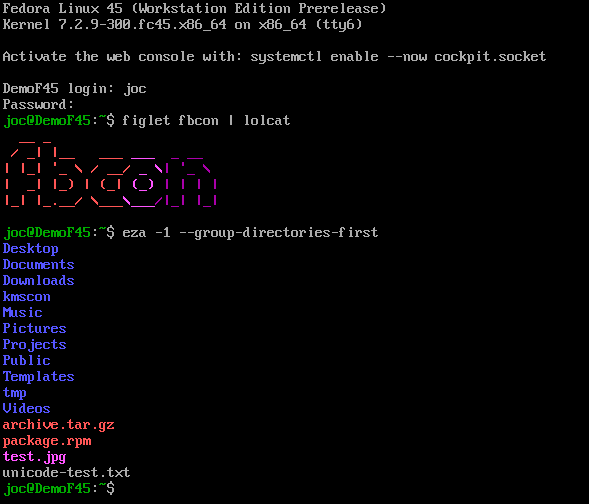
Previous experience, Fedora 45 with fbcon:
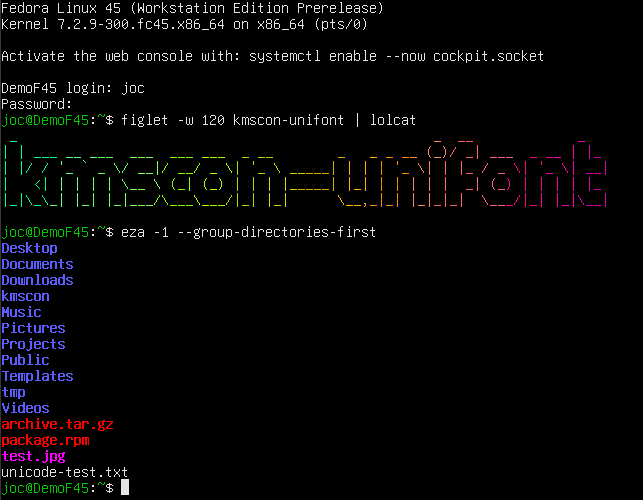
Fedora 45 with kmscon (unifont)
Fedora 45 with kmscon (freetype) and some customization (fish, Hack Nerd Font)

How to configure kmscon the way you like
Plugins
kmscon is split into multiple subpackages, so you have a minimal installation without graphic/font dependencies for servers, and optional packages for more features.
- kmscon: main package, contains the unifont font, for good unicode support without additional dependencies.
- kmscon-freetype: Use the freetype library to render the fonts.
- kmscon-pango: Uses the pango library to render the fonts, it is deprecated in favor of kmscon-freetype.
- kmscon-gl: This is an opengl renderer. This might be faster but also a bit blurry. You need to add hwaccel to your configuration file to actually use it.
Configuration file
The configuration file for kmscon is /etc/kmscon/kmscon.conf
you can copy the example with this command:
sudo cp /etc/kmscon/kmscon.conf.example /etc/kmscon/kmscon.conf
Here are the most common options to change:
verbose: enable more logs, if you have issues with kmscon. To get the logs, use
journalctl -u kmsconvt*
font-engine: defaults to freetype (if available) or unifont (fallback). You can also use pango, or psf (the format used by the kernel fonts)
font-name: The name of the font (for pango, freetype, and psf). As kmscon runs as root, the font must be installed in /usr/share/fonts, not in your home directory. You can find the exact name to use with fc-list. You can install Cascadia fonts, that are good for non-latin languages with
sudo dnf install cascadia-fonts-all
If you want fancy icons, Nerd fonts are good, but not available in the default Fedora repository. For psf font, font-name is the path to the font file.
font-size: The font height in pixels. By default kmscon tries to scale the font to have about 120×40 characters.
multi-monitor: multi-monitor configuration, the terminal is the same on all monitor. The default is scaled which will scale the font to avoid too much black border. Other options are clone, which will center the terminal on each monitor, and largest which will only use the largest monitor.
dpms-timeout: The timeout (in second) after which the monitor will be turned off. default to 600 (10 minutes). 0 means disabled.
no-mouse: This disable the mouse support. It can be useful to disable touchpad on some laptops.
palette: Change the default color palette for your terminal. You can define each color if none of the provided default palette suits you.
Conclusion
We hope you will enjoy using kmscon in Fedora 45. You may use it occasionally, or use it as your main session for some specific usage, like Veronica Explains for a writerdeck https://www.youtube.com/watch?v=E7vFdy4BEAY.
If you encounter any bugs, have feature ideas, or want to contribute to development, the upstream repository is at https://github.com/kmscon/kmscon.

Start the discussion at discussion.fedoraproject.org