



This guide provides a step-by-step walk-through for integrating a uTrust FIDO2 security key (Identiv uTrust) with Fedora 42 to secure:
- LUKS2 full disk encryption (FDE)
- Graphical login (LightDM + Cinnamon)
- Sudo elevation
Audience for this article
The guide is intended for instructional cybersecurity labs and intermediate Fedora users. It prioritizes PIN + Touch verification for strong security.
NOTE: Since misconfiguration can result in system lockout, readers should work only on non-production systems, maintain a fallback password, and back up all critical data before making changes.
Background
The following technology is used in this walk-through:
FIDO2 (Fast Identity Online 2) is a standard for passwordless or multi-factor authentication using hardware tokens. It relies on public key cryptography and supports PIN or biometric verification. In this setup, FIDO2 provides secure, hardware-backed authentication using a PIN and a required physical touch on the key.
LUKS2 (Linux Unified Key Setup 2) is the full-disk encryption format used in modern Linux systems.
PAM (Pluggable Authentication Modules) and Polkit (PolicyKit) control authentication for logins and privilege escalation across both GUI and CLI actions.
This guide combines these technologies to deliver end-to-end security — from full-disk decryption at boot, to graphical login, to administrative elevation with sudo.
System Overview
The following hardware/software is used in this implementation:
Hardware and Software:
- Architecture: x86_64
- CPU: Intel Core i7
- Kernel: 6.14.9-300.fc42.x86_64
- Fedora Version: Fedora 42 (Adams)
- Desktop Environment: Cinnamon with LightDM
FIDO2 Key: Identiv uTrust FIDO2
- Vendor/Product:
0x04e6:0x5a11
- Protocol: CTAP2 / FIDO_2_0
- PIN: Required
- User Presence: Touch required
- User Verification: PIN only (no biometrics)
- Device Path:
/dev/hidraw0
Disk Setup
- Btrfs on LUKS2 FDE (
)/dev/sda3
- LUKS UUID:
(this will differ on each machine)8b2f0322-f508-4bed-8b1e-8f05cc784d60
- Keyslots:
- 0: Passphrase (argon2id)
- 1: FIDO2 credential (note: in testing, only one FIDO2 key could be used at a time)
Process Flow Overview
The following phases occur during implementation:
- System preparation — Install Fedora 42 with LUKS2 full-disk encryption and update packages.
- Package installation — Add the development, PAM, and FIDO2 tools required for integration.
- FIDO2 key enrollment — Register the key with LUKS2 for disk unlock.
- PAM configuration — Enable FIDO2 authentication for login and sudo.
- Polkit configuration (optional) — Extend FIDO2 support to graphical privilege prompts.
- Testing and verification — Confirm PIN + Touch authentication at boot, login, and sudo elevation.
Implementation Guide
Phase 1: System Preparation
- Create a clean install of Fedora 42 with Cinnamon + LightDM
- During installation/partitioning configure the following:
- LUKS2 Full Disk Encryption (Btrfs or ext4)
- No separate /home
- No auto-login
- Create an admin user
- Update the system:
sudo dnf upgrade --refresh -y
Phase 2: Required Package Installation
Install required development and security packages:
sudo dnf install -y
gcc make cmake git autoconf automake libtool
pam-devel systemd-devel glibc-devel openssl-devel
libfido2 libfido2-devel fido2-tools u2f-host pam-u2f
pcsc-lite pcsc-lite-ccid pcsc-tools ccid opensc
authselect cryptsetup pam_passwdqc fprintd-pam gnome-keyring-pam
Enable and start the PC/SC daemon for smartcard support:
sudo systemctl enable --now pcscd
Phase 3: FIDO2 Key Setup
- Insert the FIDO2 key and verify it is detected:
lsusb
fido2-token -L
fido2-token -I /dev/hidraw0
Expected output is:
Identiv uTrust FIDO2 (0x04e6:0x5a11) with options rk, clientPin. - Troubleshooting considerations if the key isn’t recognized:
- Ensure /dev/hidraw0 exists
- Run the following to load kernel modules:
sudo modprobe hid
sudo modprobe hid_generic - Replug the key
- If FIDO_ERR_INTERNAL (-9) occurs:
- Create the plugdev group:
sudo groupadd plugdev
sudo usermod -aG plugdev $USER - Apply a udev rule:
echo 'KERNEL=="hidraw*", ATTRS{idVendor}=="04e6", ATTRS{idProduct}=="5a11", TAG+="uaccess", GROUP="plugdev"' | sudo tee /etc/udev/rules.d/70-u2f.rules sudo udevadm control --reload-rules && sudo udevadm trigger - Reboot:
sudo reboot
- Create the plugdev group:
- Enroll the FIDO key for LUKS2:
sudo systemd-cryptenroll --fido2-device=/dev/hidraw0 --fido2-with-client-pin=yes /dev/sda3 - Validate enrollment:
sudo cryptsetup luksDump /dev/sda3 - Update /etc/crypttab:
sudo nano /etc/crypttab
Add or modify:
luks-... UUID UUID=... none fido2-device=auto fido2-with-client-pin=yes discard
Phase 4: PAM Configuration
- Fedora’s pam-u2f package lacks pamu2fcfg. Build pamu2fcfg from source:
- git clone https://github.com/Yubico/pam-u2f
- cd pam-u2f
- mkdir build && cd build
- cmake -DBUILD_MANPAGES=OFF ..
- make
- sudo cp ./pamu2fcfg/pamu2fcfg /usr/local/bin/
- sudo chmod +x /usr/local/bin/pamu2fcfg
- Generate U2F mapping:
pamu2fcfg -n -u $(whoami) -o pam://fedora | sudo tee /etc/u2f_mappings
Verify output includes +presence+pin (e.g., yourusername:3aaOH5…Base64…,M9hAf2…==,es256,+presence+pin) - Set permissions:
sudo chmod 600 /etc/u2f_mappings
sudo chown root:root /etc/u2f_mappings - Backup PAM files:
mkdir -p ~/fido2-audit/pam
sudo cp /etc/pam.d/{sudo,lightdm,cinnamon-screensaver,system-auth,password-auth,polkit-1} ~/fido2-audit/pam/ - Update PAM files to include FIDO2 authentication. On this system, the working configuration is:
- /etc/pam.d/sudo
- auth sufficient pam_u2f.so authfile=/etc/u2f_mappings cue pinverification=always origin=pam://fedora appid=pam://fedora
- auth required pam_unix.so
- account include system-auth
- password include system-auth
- session optional pam_keyinit.so revoke
- session required pam_limits.so
- session include system-auth
- /etc/pam.d/lightdm
- auth sufficient pam_u2f.so authfile=/etc/u2f_mappings cue pinverification=always origin=pam://fedora appid=pam://fedora
- auth [success=done ignore=ignore default=bad] pam_selinux_permit.so
- auth required pam_env.so
- auth substack system-auth
- auth include postlogin
- account required pam_nologin.so
- account include system-auth
- password include system-auth
- session required pam_selinux.so close
- session required pam_loginuid.so
- session required pam_selinux.so open
- session optional pam_keyinit.so force revoke
- session required pam_namespace.so
- session include system-auth
- session optional pam_lastlog.so silent
- session include postlogin
- /etc/pam.d/cinnamon-screensaver
- auth sufficient pam_u2f.so authfile=/etc/u2f_mappings cue pinverification=always origin=pam://fedora appid=pam://fedora
- auth include system-auth
- account include system-auth
- password include system-auth
- session include system-auth
- /etc/pam.d/sudo
Phase 5: Polkit Configuration (Optional)
Polkit GUI prompts were not enabled on my test system (no /etc/pam.d/polkit-1 and no running user agent). If you want FIDO2 for Polkit dialogs, ensure a compatible agent is running (for Cinnamon: polkit-gnome-authentication-agent-1). In testing, GUI prompts were not enabled by default and required additional configuration.”
Screensaver unlock: When the screen is locked, Fedora may default to the password prompt. Click the small two-person icon to switch to the FIDO2 method. Keep a fall-back password available. In various tests some desktop prompts did not always default to FIDO2.
Phase 6: Testing
Reboot the system
Confirm functionality
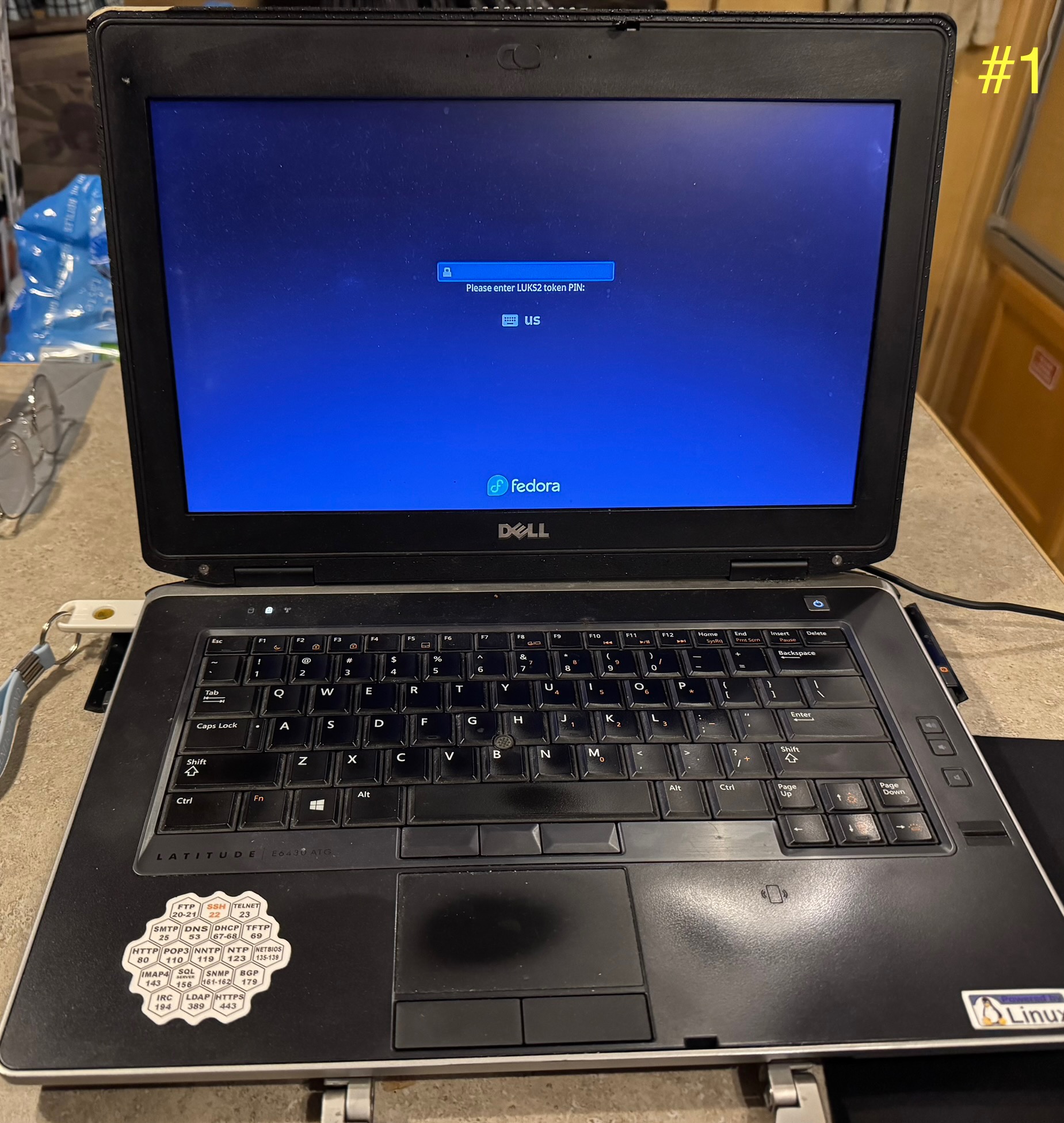
The following sequence of images shows the following:
- FDE (LUKS Unlock): PIN + Touch prompt appears at boot
- GUI Login (LightDM): PIN + Touch required
- Sudo: sudo echo test should prompt for PIN + Touch
- Cinnamon lock screen: PIN + Touch (switch input method)
- Polkit: GUI software install or pkexec prompts for PIN + Touch
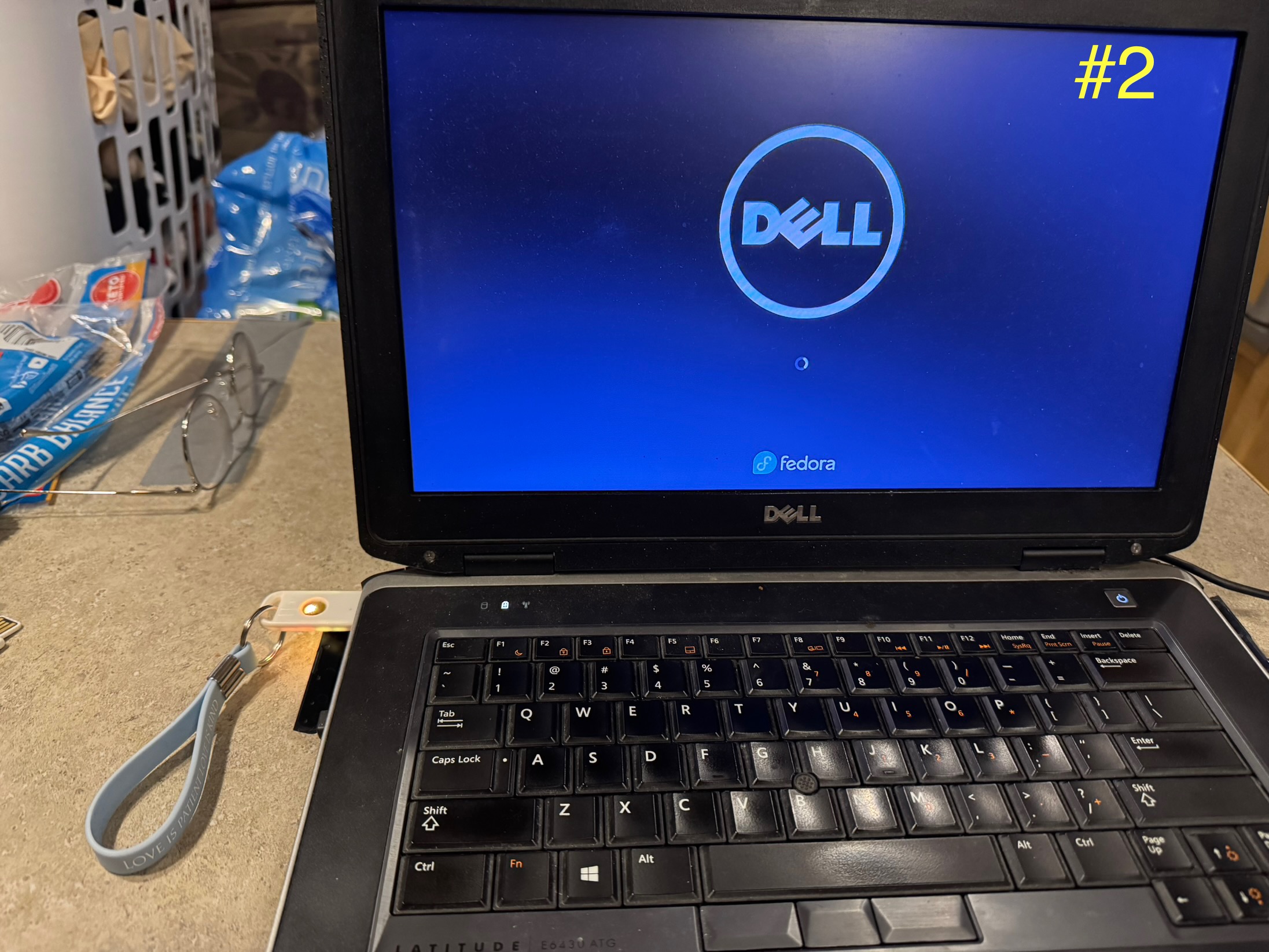
FIDO2 key lit up, waiting for touch to complete full-disk unlock.

Fedora LightDM login screen prompting for FIDO2 key PIN.

Login process with FIDO2 key lit up, requiring touch to proceed.
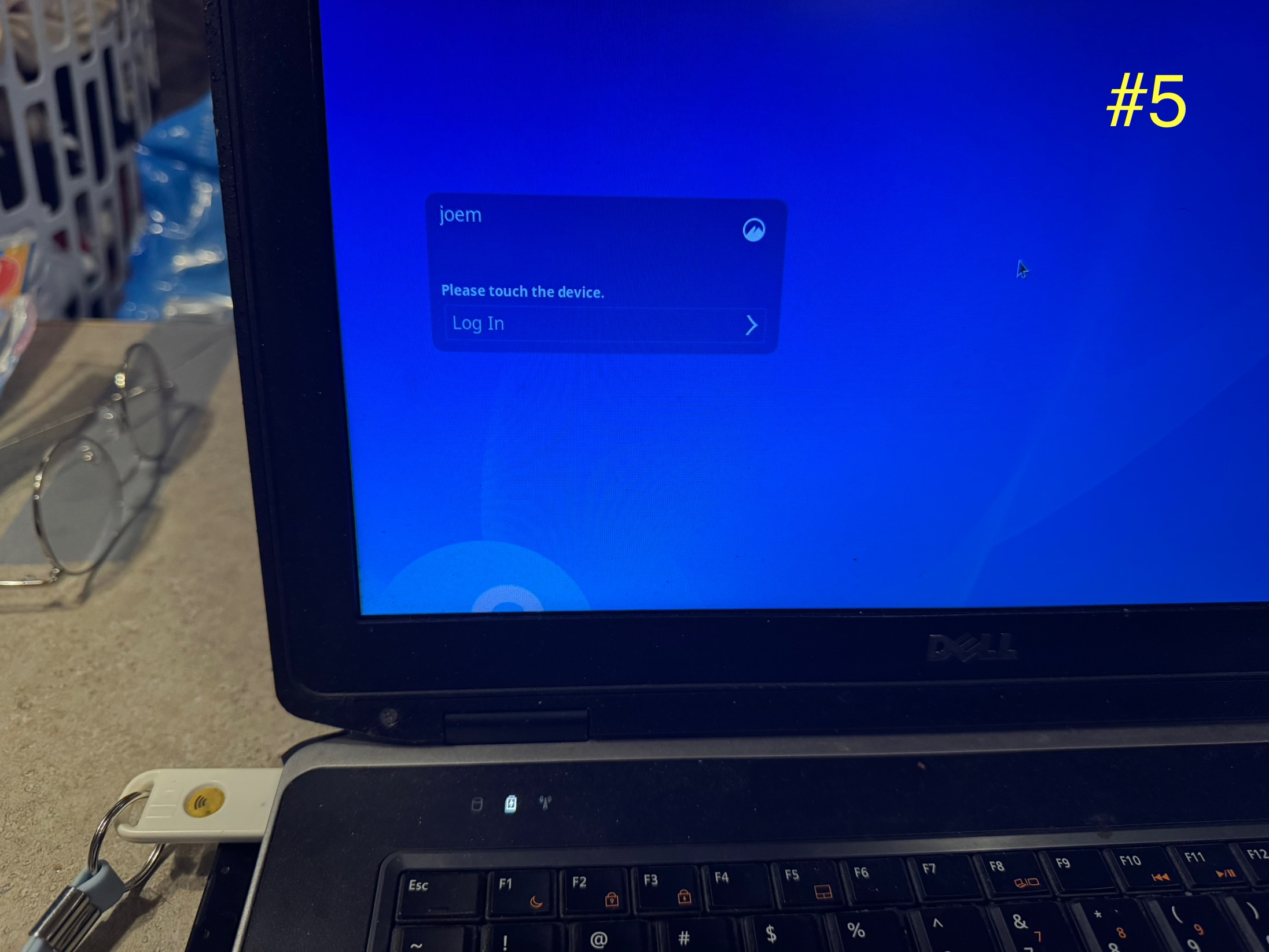
Login screen showing successful authentication, ready to “Log In.”

Example of sudo test requiring PIN + touch in terminal.
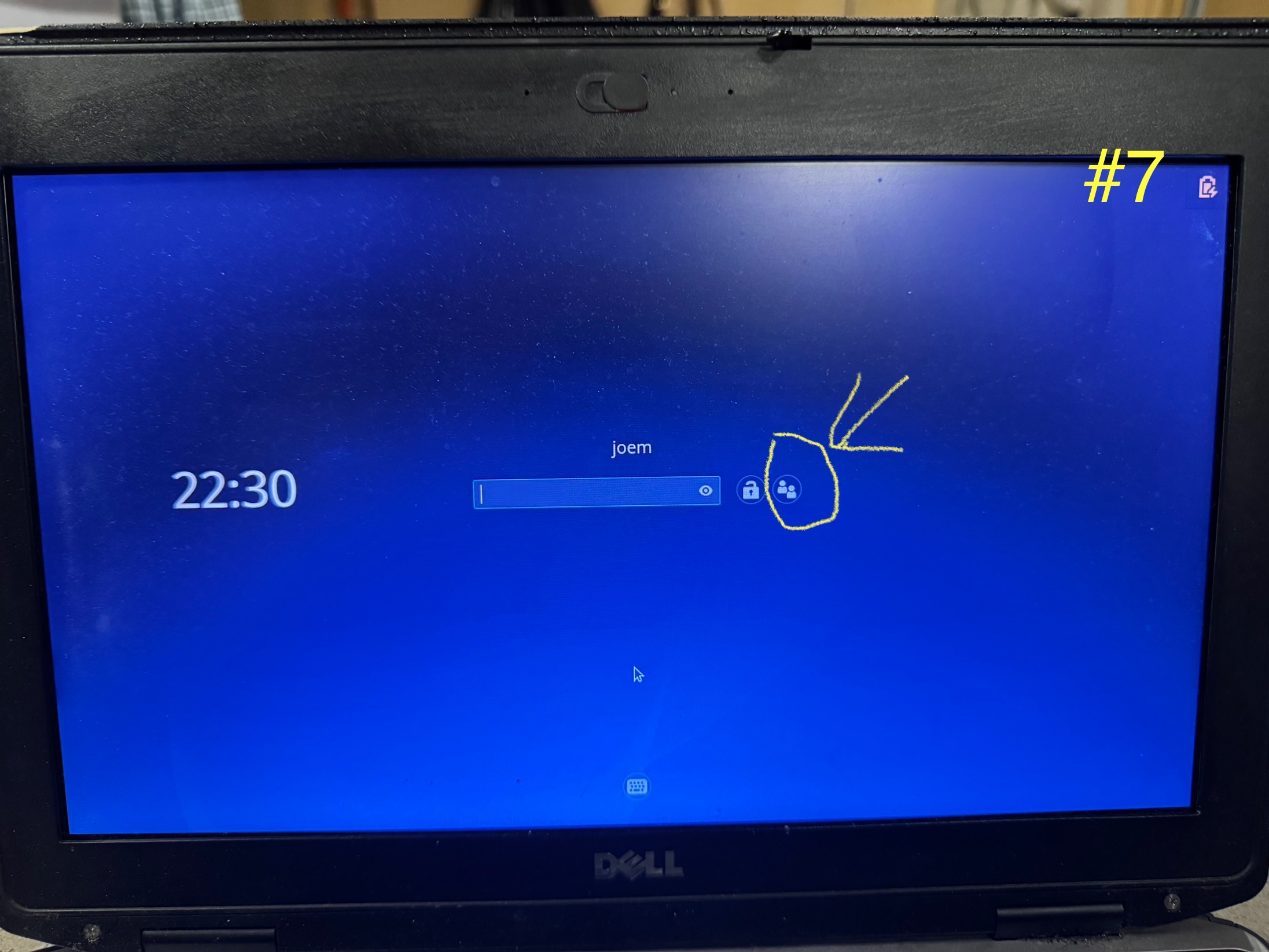
Confirm the fallback password login remains functional
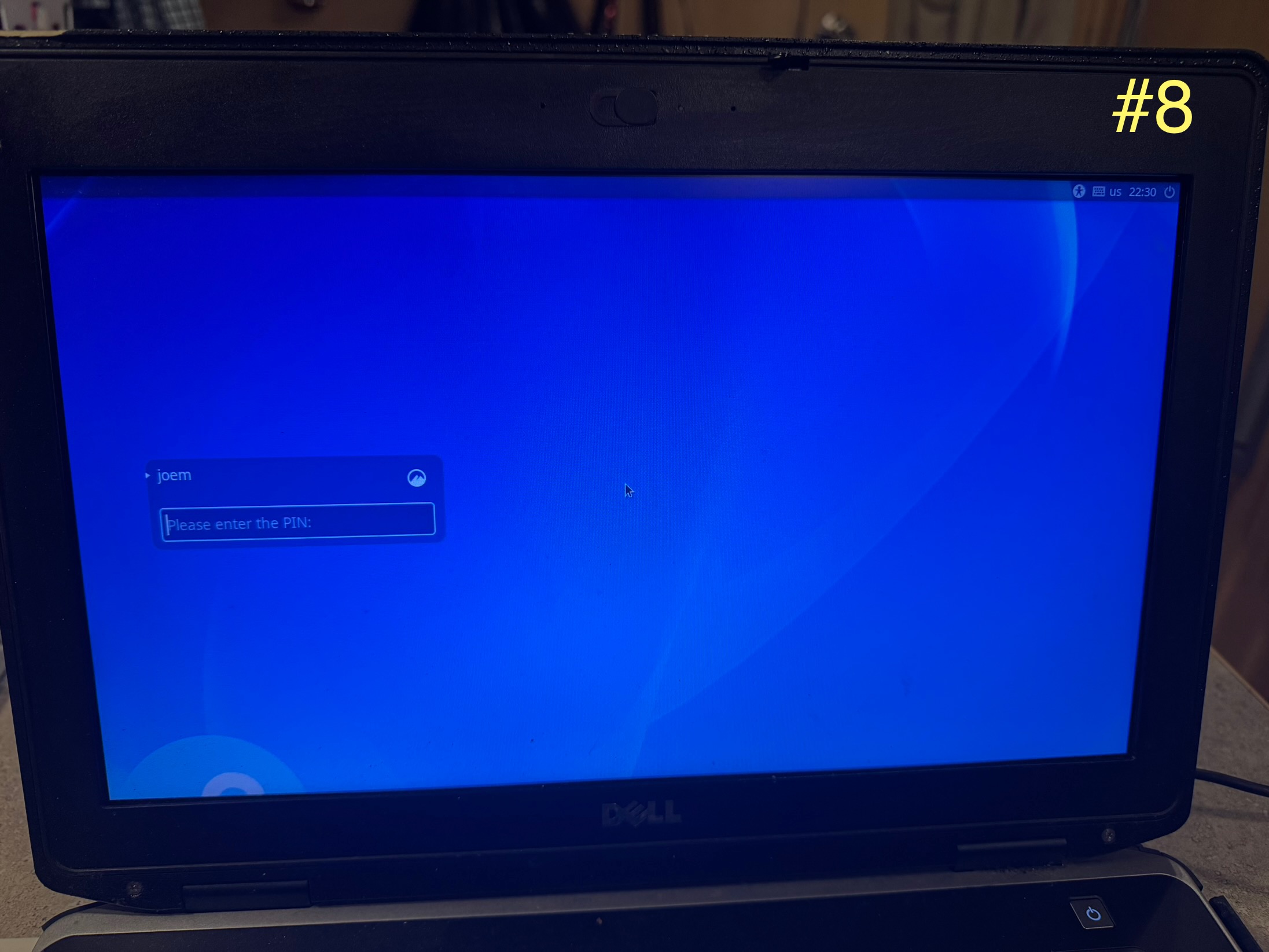
Re-login screen asking for FIDO2 key PIN to unlock session.
Recovery and Backup
Backup:
mkdir -p ~/fido2-audit/pam_restore
for file in sudo lightdm cinnamon-screensaver system-auth password-auth polkit-1;
do
  sudo cp ~/fido2-audit/pam/$file ~/fido2-audit/pam_restore/$file
done
Restore if needed using TTY or Live USB.
Emergency Login:
- Use a high-entropy admin password
- Store the password securely off-line or in encrypted container
Troubleshooting
Multiple FIDO2 Keys:
lsusb
sudo usbreset /dev/bus/usb/001/003
Warnings
- Never test on production systems
- Back up /etc/crypttab and /etc/pam.d/*
- Avoid running dracut --force unless ready
Security Notes
Strengths:
- Hardware-backed auth
- PIN + Touch = Strong 2FA
Risks:
- Loss of key
- System updates may break compatibility
Recommendations:
- Always keep a fall-back passphrase
- Register a backup FIDO2 key
- Back up /etc/u2f_mappings and test after upgrades
Performance Considerations
| Component | Delay Added |
|---|---|
| Boot (FDE) | ~5–10 seconds |
| GUI Login | ~2–3 seconds |
| Sudo/Polkit | ~1–2 seconds |
Conclusion
This guide demonstrates the successful integration of a uTrust FIDO2 security key with Fedora 42 for secure authentication across LUKS2 full-disk encryption, LightDM login, and sudo elevation. The setup is stable, reproducible, and well-suited for labs or intermediate Fedora users.
Polkit integration is optional and may vary by desktop environment. In testing, GUI prompts were not enabled by default and required additional configuration.


Patrick
Great article! Two typos:
Phase 3 item 1: missing newline between each command.
lsusb fido2-token -L fido2-token -I /dev/hidraw0
Phase 3 item 3: missing new line between sudo commands:
sudo groupadd plugdev sudo usermod -aG plugdev $USER
Gregory Bartholomew
Thanks. I think I’ve fixed it.
AC
I have successfully integrated U2F into login/PAM before using Fedora’s
utility. I see you even install it in the setup of the article, but then don’t use it. Curious about if you needed to diverge from its setup to get it to work.
Also, and I could be mistaken, but I thought you would need to update the initramfs with some extra LUKS modules? Or is that all built in now?
Joe
Thanks for the thoughtful feedback! To be totally honest, it’s been months since I did the setup. From what I recall, LUKS full-disk encryption support is normally included in Fedora’s initramfs by default, but at the time the FIDO2-specific modules weren’t. I remember reading that they were supposed to be included, but in practice I still had to rebuild initramfs manually to get the key to work at boot. Fedora may handle that better now, but I’d need to redo the process to confirm.
I also installed authselect but ended up editing PAM configs directly — I ran into some issues and diverged from the standard flow. Once I get my home lab set back up, I’d like to revisit and test if a cleaner authselect approach works better.
The good news is that the test machine I set this up on is still running strong today without issues, so the approach has held up in practice.
Life update: I just wrapped up a major move and am in the middle of closing on my first house (which turned into a bit of a nightmare 😅), and I’m also starting my last quarter for my AAS. So if it takes me a while to respond further, I promise I’m not flaking out — just juggling a lot right now.
Really appreciate you sharing your experience. Comparing notes like this is what makes these setups better for everyone. 🙏
kent
This is so cool!
Joe
Thank you! I created this FIDO2-based setup as a way to build a highly secure, portable laptop for travel. I used to travel frequently for work, and one thing I always worried about was typing long passwords in public spaces like airports, where shoulder surfing or surveillance is a real risk.
With this approach, you only enter a short PIN for your hardware key instead of your full system password. That not only reduces exposure in high-traffic areas, but also provides stronger end-to-end protection if the laptop is ever lost or stolen.
What started as a fun experiment turned into a practical solution for secure travel computing. As long as you safeguard your FIDO2 key, even if someone somehow learned your PIN, it would be useless without the physical token itself.
Joe
Using a two-tier model (FIDO2 key + short PIN for daily use, with a strong backup password for emergencies) gives you the best of both worlds. The hardware key protects against shoulder surfing and theft, while the backup password—never typed unless catastrophic—ensures you’re never locked out. This minimizes your attack surface in public spaces and avoids the single-point-of-failure problem that pure hardware setups face. It’s an elegant balance of usability, portability, and resilience for secure travel computing.
thrashwerk
About Phase 4, the pamu2fcfg package is in the repos (even says in the GitHub page) so I don’t think you need to compile it from source, just install the package
?
Joe
I’d generally agree with you, and on paper you’re absolutely right — it should just be in the repos. That said, in my actual testing I’ve run into cases where things “say” they’re present or should work, but in practice I’ve still had to compile because they either weren’t actually there or didn’t function as expected.
I’m planning to replicate the process again soon and take even more detailed notes to see whether recent updates have improved the situation or changed anything from what I last documented. If you’ve actually gone through the entire process end-to-end and found that it worked as stated without compiling, I’d really appreciate hearing about your results. Having different experiences to compare against is really valuable for refining future runs and corrections. Thanks!