

TuxTalk is a free voice dictation tool for Linux. You hold a key, talk, and let go. What you say appears wherever your cursor is located: a document, an email, a chat box or a terminal. The speech model runs on your own computer, so your voice never leaves it and there is no account to create. This is provided under the MIT license and the code is on GitHub.
This article walks through installing it on Fedora Workstation or Fedora KDE Plasma Desktop, what the first run changes on your system and why, using it day to day, and removing it if you wish.
Before you start
You need a working microphone and a 64-bit Fedora install on x86_64. No graphics card is required. The default speech model is fast on an ordinary processor, and if you have an NVIDIA, AMD or Intel graphics chip, TuxTalk can use it through Vulkan.
TuxTalk isn't in the Fedora repositories and there's no Copr build. You install the RPM from the project's GitHub releases page and check it against the checksum file published with it.
Install the RPM
Download both tuxtalk-0.23.1-1.x86_64.rpm and SHA256SUMS.txt from the latest release at https://github.com/ronb1964/TuxTalk/releases into the same folder. Then check the RPM against the checksum file:
$ cd ~/Downloads
$ sha256sum -c --ignore-missing SHA256SUMS.txt
tuxtalk-0.23.1-1.x86_64.rpm: OK
If it says anything other than OK, delete the file and download it again. Then install it with dnf, which also pulls in the few system libraries it needs:
$ sudo dnf install ./tuxtalk-0.23.1-1.x86_64.rpm
dnf warns that it skipped the OpenPGP check for the package. This is because the RPM isn't signed with a key and why the checksum step, indicated above, matters.
The package installs into /opt/talktype (the folder kept the app's old name so upgrades replace files in place), adds a tuxtalk command, and puts TuxTalk in your applications menu.
Installing on Atomic Desktops
For Silverblue and the other Fedora Atomic desktops, download the AppImage from the same release page indicated above (see the Assets section). Make it executable and run it:
$ chmod +x TuxTalk-v0.23.1-x86_64.AppImage
$ ./TuxTalk-v0.23.1-x86_64.AppImage
What the first run changes
Start TuxTalk from your applications menu. The first-run screen looks at your graphics card and your language and recommends a setup. The default is NVIDIA's Parakeet model, which covers English and 24 other European languages. If you need another language, OpenAI's Whisper covers 99 of them. Either one downloads once and then works offline.

The first run also asks for your admin password once, to set up two things:
- The hotkey helper. On Wayland an ordinary program cannot detect keys pressed in other windows, so TuxTalk needs help to notice F8. A small helper program runs as a systemd service, tuxtalk-hotkeys, and it's the only part of TuxTalk that reads the keyboard. It doesn't run as root. It runs as a throwaway user (systemd's DynamicUser) whose only extra right is the input group, with no network, no access to home folders, a read-only system and no way to gain more privileges. It only reports hotkeys, never what you type: F-keys and the few other keys that never type anything, Right Ctrl or Right Alt on their own, or a key held together with two of Ctrl, Alt and Super. Letters, numbers and Enter are never reported. And it only reports them to the user who's at the screen. The file it runs sits in a root-owned folder, /usr/local/libexec/tuxtalk, so nothing you run as yourself can change it.
- A udev rule that gives /dev/uinput to the user at the screen, the same way Steam's rule does for game controllers. TuxTalk uses it to type, through its own virtual keyboard. A program can press keys with /dev/uinput, but it can't read them.
A restart is not needed. You can look at the helper yourself:
$ systemctl status tuxtalk-hotkeys
$ systemd-analyze security tuxtalk-hotkeys
The second command rates it 0.6, "SAFE".
On Fedora Workstation, TuxTalk also offers to install its GNOME Shell extension, which puts its menu in the top bar. GNOME only loads a new extension after you log out and back in once. On KDE Plasma it shows a tray icon instead.
Dictate
Click where you want the text to go, hold F8, say what you want, and let go. A moment later the text appears. If you'd rather not hold a key for a long dictation, tap F9 to start and tap it again to stop.
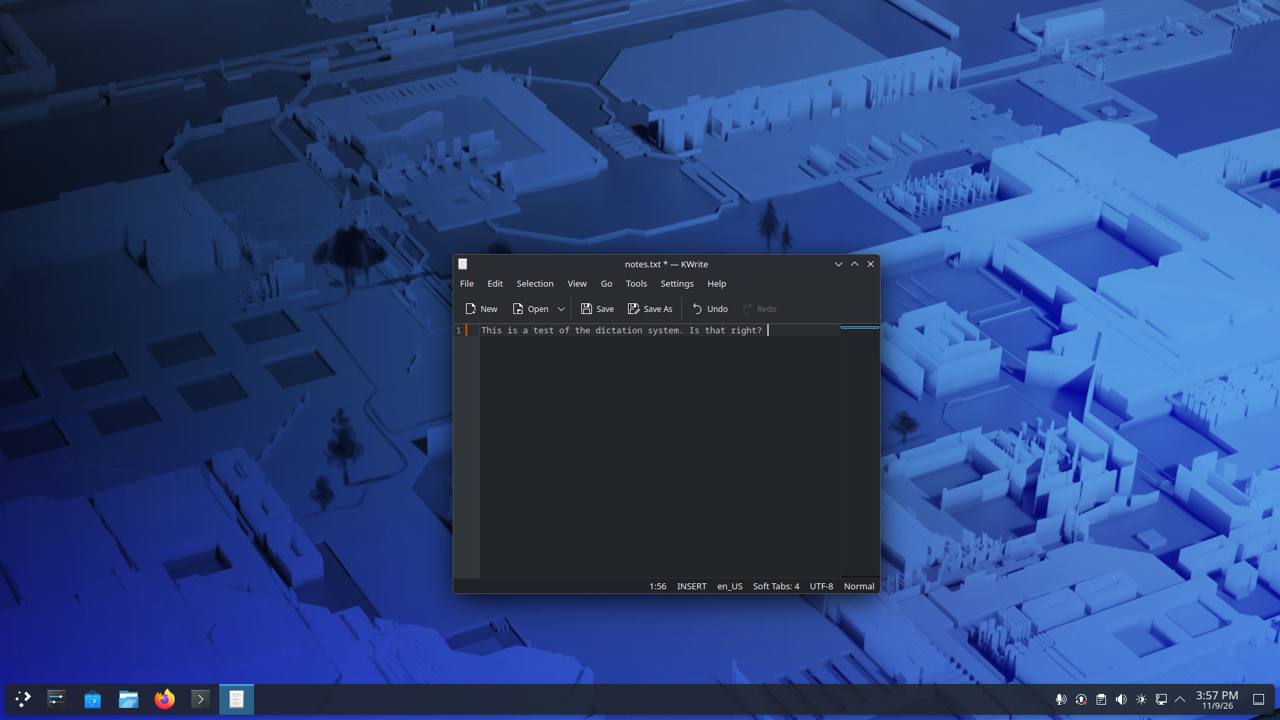
A few things that make it more useful:
- Say punctuation and it appears: "comma", "period", "question mark", "new paragraph".
- Say an email address the way you'd say it out loud. "john at gmail dot com" comes out as john@gmail.com.
- In a terminal it leaves off the capital letter and the period, so a dictated command is ready to run.
- Names and terms it keeps getting wrong go in Your Words in Preferences, spelled your way. Or say "fix that word" right after a dictation.
- For hands-free use, turn on the double-tap option under Preferences → General. Then double-tap F9, talk as long as you like, and it stops by itself when you stop talking.
If your F-keys need the Fn key, Preferences → General also offers Right Ctrl, Right Alt, Scroll Lock or Left Ctrl+Space.
There's more in TuxTalk Labs under Preferences → Advanced. Each feature in this menu is off until you turn it on. The newest feature is running the desktop by voice: opening apps, snapping windows, and a numbered mouse grid you can click with by voice.
Remove TuxTalk
Open Preferences, go to Updates & Backup and click Uninstall TuxTalk…. It asks for your password once and removes everything it set up: the program, the hotkey helper, the udev rule, the downloaded models and the GNOME extension. Your settings are retained unless you tick the box to delete them as well. If TuxTalk won't open, the same thing can run from a terminal:
$ tuxtalk --uninstall
Removing only the package with sudo dnf remove tuxtalk takes the hotkey helper with it, but leaves your settings and the downloaded models in your home folder.
Feedback
TuxTalk is a hobby project, and it gets better when people tell me what doesn't work for them. Questions, problems and ideas are welcome in the Discussion section in the GitHub project at: https://github.com/ronb1964/TuxTalk/discussions
A note on how this was made:
I can't write code. TuxTalk is written by Claude, Anthropic's AI, and I test it and use it every day. I do my best to make sure the code is held to a standard a human developer can respect. Claude also helped me draft this article. I went through it and changed it to sound more like me, and I've checked every step in it. (Assisted-by: Claude)


Start the discussion at discussion.fedoraproject.org